
網站效能的監控,類似微軟的 application insights,但是微軟的要錢,自己架的不用,而且需要看甚麼就自己寫,換個方向想其實也比較方便
APM 的全名是 application performance management,而 RUM 則是 real user monitoring,RUM 直接從用戶端的瀏覽器崁入一些 js 指令收集數據,我自己的理解是 RUM 是類似 Chrome 開發者工具那樣,只是將數據保存在某個地方,便於之後查看,而 APM 則是將使用者的操作,後端的處理經過哪些指令,呼叫了那些第三方服務,這些等等的數據也記錄下來,然後可以透過一些視覺化的方式事後去監控網站前端與後端的效能。
對網站維運及除錯是蠻有幫助的…….只是 Log 的點要埋的對就是了,下面的步驟都只是初學的一些步驟及心得,不一定是正確的,參考請注意。
架構#
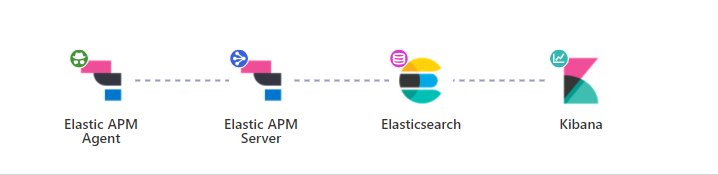
架構如上,網頁加入apm-agent-rum-js ,傳遞給apm-server,再發送給elasticSearch,最後透過kibana觀看數據
環境建立#
基本上就是透過 docker 建立所需要的東西,這部分請參考我自己練習的docker-compose,當然我也是改自deviantony/docker-elk的Elastic stack (ELK) on Docker,有興趣的人可以了解一下
apm-server#
啟用 APM-server RUM 功能#
APM-server 依賴elasticSearch,此處須設定 ES 的主機位置
apm-server.host: "localhost:8200"

output.elasticsearch.hosts: ["http://elasticsearch:9200"]

apm-server.rum.enabled: true
apm-server.rum.event_rate.limit: 300
apm-server.rum.event_rate.lru_size: 1000
apm-server.rum.allow_origins: ["*"]
apm-server.rum.library_pattern: "node_modules|bower_components|~"
apm-server.rum.exclude_from_grouping: "^/webpack"
apm-server.rum.source_mapping.cache.expiration: 5m
apm-server.rum.source_mapping.index_pattern: "apm-*-sourcemap*"
設置 CORS#
解決 CORS 及 APM 追蹤的問題,須加上 header,此處為了測試僅在web.config進行設置全部開放,實務上應針對個別的 API 進行設定
  <system.webServer>
    <httpProtocol>
      <customHeaders>
        <add name="Access-Control-Allow-Origin" value="*"/>
        <add name="Access-Control-Allow-Headers" value="Content-Type, elastic-apm-traceparent"/>
        <add name="Access-Control-Request-Method" value="GET, OPTIONS, POST"/>
        <remove name="X-Powered-By" />
      </customHeaders>
    </httpProtocol>
    ...
在後來自己的幾次練習,發現有的時候 APM-server 狀態都沒有正確,最後是將 container 全部 remove , 包含建立的 network 還有 elasticsearch 的 data,然後重新跑
docker-compose up,最後才出現了正確的狀態,之前也有嘗試過在apm-server的容器內用 curl 去打elasticsearch:9200也是成功的,這個問題就始終查不到正確的解決方案…

apm-agent#
client 端範例#
如果想看文件的話可以參考此處,取得 GitHub 或是 UNPKG 的 js 並於專案中引用載入,記得elastic-apm-rum.umd.js要先加入至專案
基本上只要在共用頁面_Layout.cshtml裡面埋這段 Code 就好了
<script src="~/Scripts/Plugins/elastic-apm-rum.umd.js" crossorigin></script>
<script>
  elasticApm.init({
    serviceName: 'mySite-FE',
    serverUrl: 'http://localhost:8200',
    active: true,
    instrument: true,
    disableInstrumentations:['eventtarget'],
    environment: 'localhost'
  })
</script>因為有設定environment,所以可以切換環境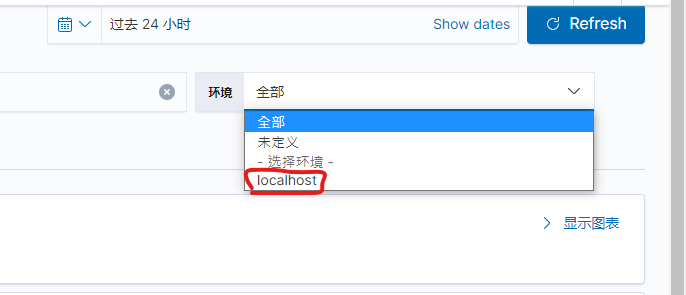
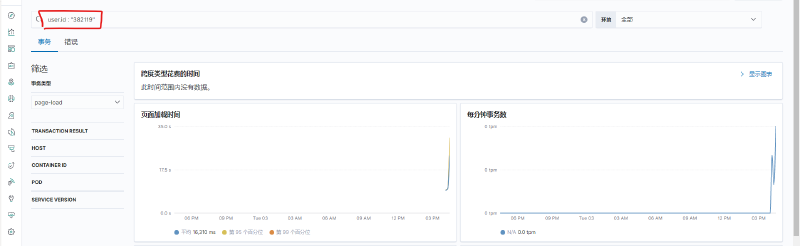
例如加入使用者資訊,就可以透過user.id : "382119"來篩選資料,或是透過user.name : "art"以人名篩選
  elasticApm.setUserContext({
    id: @AuthorizeManagement.CurrentUser.Id,
    username: '@AuthorizeManagement.CurrentUser.Name'
  })
此處的
AuthorizeManagement物件是後端自行設計的一個用來記錄登入者資訊的一個靜態類別,實際需要替換為你自己後端的資料來源
自行撰寫事件#
如果套件自行建立的資料不符合需求,也可以選擇自己寫事件,下面是一個範例
<h2>會員資料異動模擬</h2>
<div id="app">
  <form>
    <label for="phone">電話</label>
    <input type="text" v-model="form.phone" />

    <label for="name">姓名</label>
    <input type="text" v-model="form.name" />
  </form>
  <button @@click="insAuditLog">修改</button>
  <button @@click="getAuditLog">refresh</button>

  <span>共 {{ recordCount }} 筆異動紀錄</span>
  <table class="table table-bordered table-sm">
    <thead>
      <tr>
        <th>#</th>
        <th>異動紀錄</th>
      </tr>
    </thead>
    <tbody>
      <tr v-for="(record,index) in records">
        <td>{{ index + 1}}</td>
        <td>
          <table class="table table-bordered table-sm">
            <thead>
              <tr>
                <th>#</th>
                <th>異動欄位</th>
                <th>異動前</th>
                <th>異動後</th>
                <th>異動日期</th>
                <th>異動人員</th>
              </tr>
            </thead>
            <tbody>
              <tr v-for="(content,index) in record._source.content">
                <td>{{ index+1 }}</td>
                <td>{{ content.field }}</td>
                <td>{{ content.valueBefore }}</td>
                <td>{{ content.valueAfter }}</td>
                <td>{{ record._source.modifiedDate }}</td>
                <td>{{ record._source.modifiedBy }}</td>
              </tr>
            </tbody>
          </table>
        </td>
      </tr>
    </tbody>
  </table>
</div>

@section scripts{
<script src="~/Scripts/Page/AuditLog/Index.js"></script>
}基本上就是在初始化的時候宣告pageLoadSampled,跟 server 說我要自己定義事件了,你不用幫我用預設的事件了,所以後續就自行撰寫startTransaction()還有startSpan()了,這個部份我沒有太深入研究,暫時對我來說基本的夠用了
const SERVER_URL = "http://localhost:8898/";

const vm = new Vue({
  el: "#app",
  data: {
    records: null,
    form: {
      phone: null,
      name: null,
    },
  },
  mounted() {
    elasticApm.init({
      serviceName: "mySite-FE",
      serverUrl: "http://localhost:8200",
      pageLoadSampled: true,
    });
    this.getAuditLog();
  },
  methods: {
    checkForm() {
      for (const key in this.form) {
        if (this.form.hasOwnProperty(key)) {
          const element = this.form[key];
          if (element) return true;
        }
      }
      return false;
    },
    getAuditLog() {
      var transaction = elasticApm.startTransaction("取得資料", "custom");
      var httpSpan = transaction.startSpan("取得異動紀錄", "http");
      var vm = this;
      $.ajax({
        url: "/AuditLog/GetFakeData",
      }).done(function (res) {
        if (res.hits && res.hits.hits) vm.records = res.hits.hits;
        httpSpan.end();
        if (transaction) transaction.end();
      });
    },
    insAuditLog() {
      var transaction = elasticApm.startTransaction("異動資料", "custom");
      if (this.checkForm() === false) {
        console.log("plz input data in form");
        return;
      }
      var httpSpan = transaction.startSpan("新增異動紀錄", "http");
      var vm = this;
      $.ajax({
        url: "/AuditLog/InsFakeData",
        data: { ...vm.form },
        type: "POST",
      }).done(function (res) {
        console.log(res);
        httpSpan.end();
        // var transaction = elasticApm.getCurrentTransaction()
        if (transaction) transaction.end();
      });
    },
  },
  computed: {
    recordCount() {
      return this.records ? this.records.length : 0;
    },
  },
});
Kibana - APM#
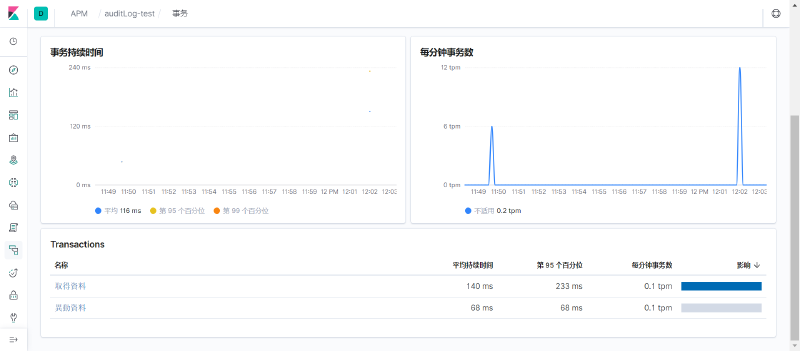
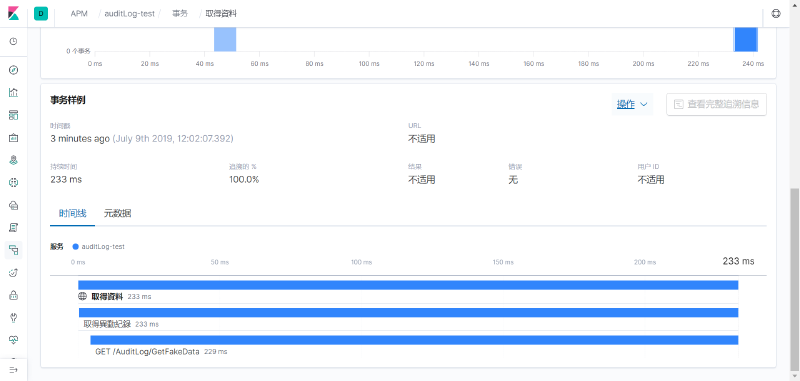
大概結果就像是這樣,自訂的事件已經會被記錄下來
apm-agent (webpack)#
如果是透過 webpack 打包程式,在程式內要引用 apm-agent 的話則是先透過指令安裝套件
npm install @elastic/apm-rum --save然後在程式內引用即可,目前我自己的作法是建立一個 singleton 去初始化,然後再有需要用到的地方再去呼叫
import { init as initApm } from "@elastic/apm-rum";

let instance = null;

class ApmHelper {
  /**
   * init apm with userObject
   * @param {{Id: string, Name: string}} user
   * @returns {ApmBase}
   */
  constructor(user) {
    if (!instance) {
      instance = initApm({
        // ref:https://www.elastic.co/guide/en/apm/agent/rum-js/current/configuration.html
        // 這邊沒有定義 serviceUrl 的原因是預設值為 http://localhost:8200
        serviceName: "my-site",
        environment: "localhost",
        active: true,
        instrument: true,
        disableInstrumentations: ["eventtarget"],
      });
    }
    if (user) {
      instance.setUserContext({
        id: user.Id,
        username: user.Name,
      });
    }

    return instance;
  }
}

export default ApmHelper;
在進入點的時候,我先初始化 apm
//index.js
new Vue({
  // ...略
  mounted() {
    new ApmHelper({ Id: "001", Name: "Art" });
  },
});
此時若進入該頁面,會看到背景發出了一個事件出去
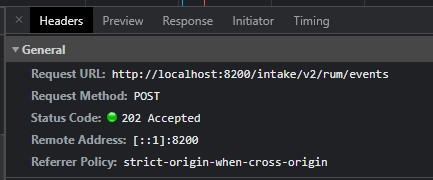
可以看到他打的是我們 apm-server,所以我們稍後也可以在kibana看到資訊
此時我們 F12 來看一下 index.js 讀取花了 1.05 秒,而 APM 這邊也有正確記錄下來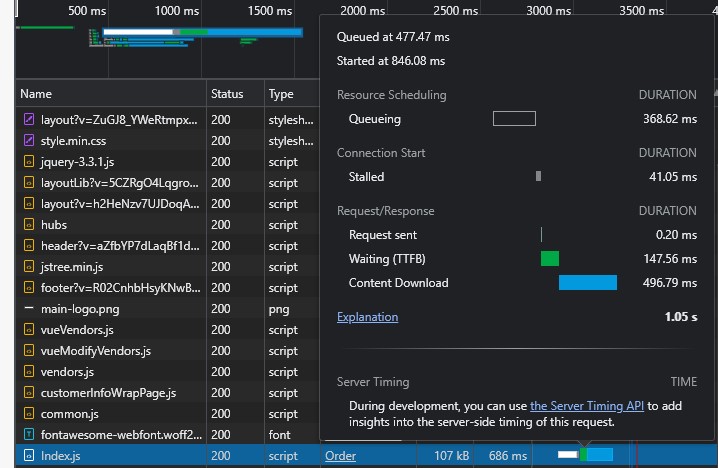
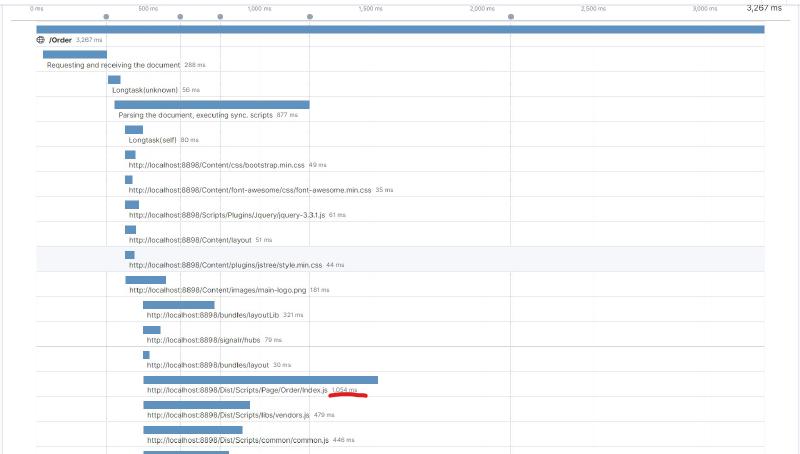
另外,我也在網站上隨便測了幾個會發出 http request 的事件,接著回到kibana去觀察,可以看到剛剛測試的事件數據
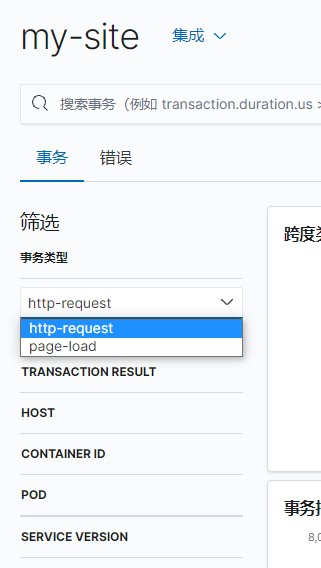

在其他的元件內,做一個假的按鈕,點了之後就呼叫 APM 附加我們要記錄下來的資料,然後故意丟一個 ERROR,讓 APM 紀錄資訊
<button @click="somethingWrong">GetWrong</button>new Vue({
// ...略
methods: {
somethingWrong() {
let apm = new ApmHelper();
let fakeData = { orderId: 12345, productId: 67890 };
apm.setCustomContext(fakeData);
throw new Error("錯誤測試");
},
},
});在錯誤測試的部分,可以看到 F12 的情況像是這樣
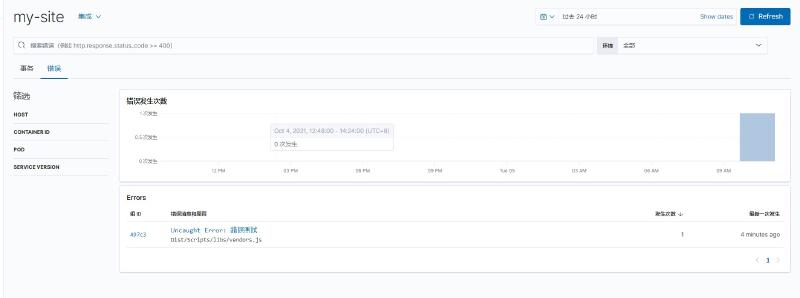
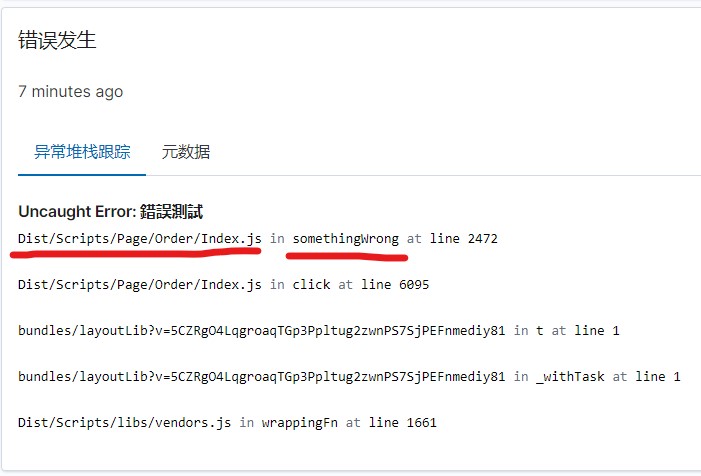
點進去看之後,我覺得比較有參考價值的就是最後一行,是哪一隻檔案的哪一個 function 錯誤
選擇另外一個頁籤,可以看到我們透過setCustomContext()附加上去的假資料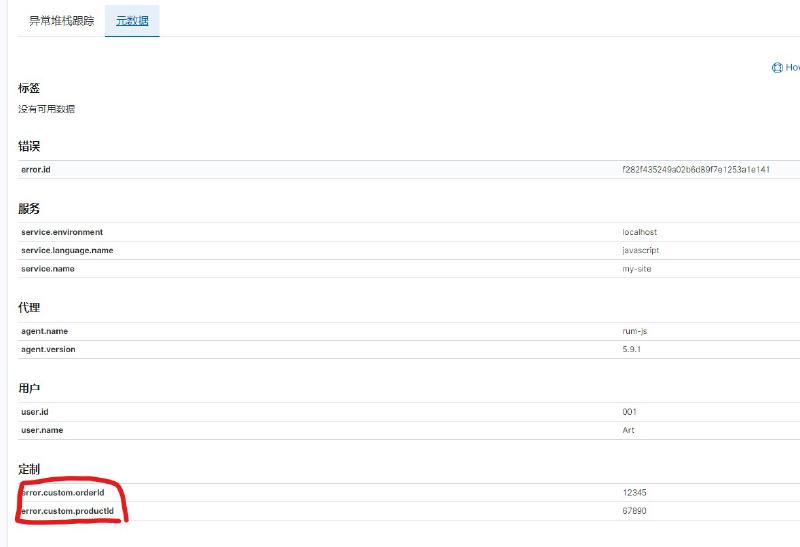
小結#
- 在整個網站會共用的地方,透過上面的程式做初始化,這樣在每一個頁面至少都能夠抓到
page-load還有http-request的數據 - 在比較重要的地方,可以再透過
setCustomContext()的方式去附加一些重要資訊 - 前端爆掉
throw Error的話,至少可以在kibana能夠看到數據,就可以趕緊針對性的處理了